
How to Reset Your WCORS Panel Password
This console is your central hub for managing your WCORS services. Here, you can manage your domain and shared hosting credentials, access your domain name EPP code (for transfers), and configure your nameservers. Follow this tutorial to learn how to reset your password and access your services, including email management.
** How to Reset Your WCORS Panel Password**
If you have forgotten your password, follow these steps to regain access to your WCORS client area.
-
Go to the Login Page: Navigate to the client area at 👉 https://wcors.com/app/client
-
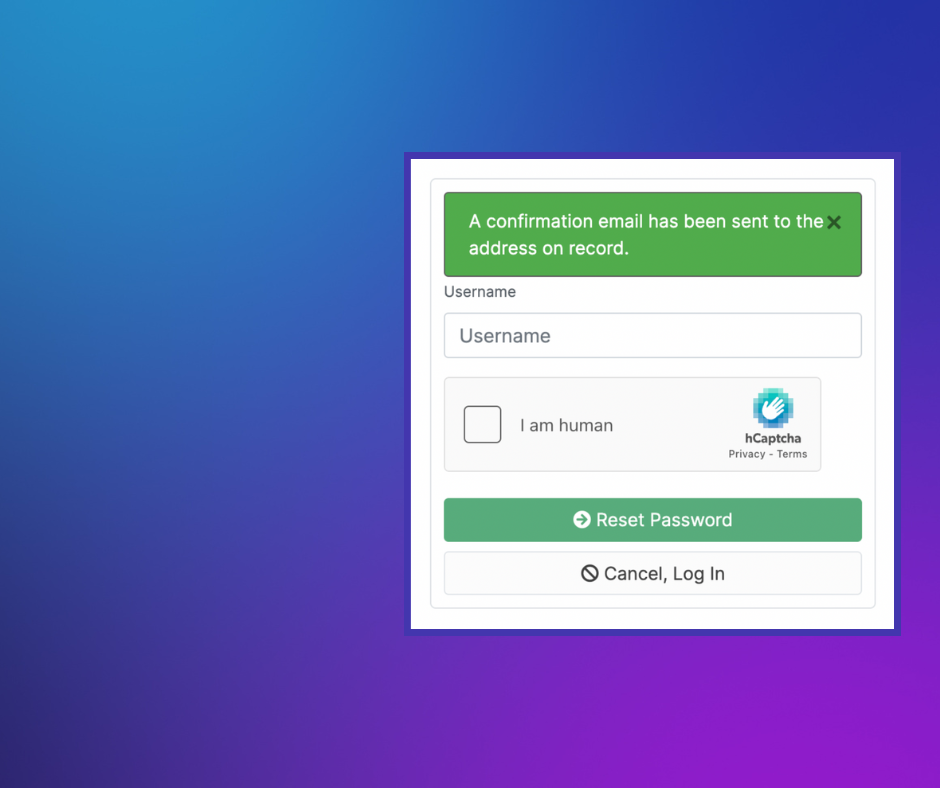
Initiate Reset: Tap the Reset Password button.
-
Enter Your Email: Enter the Billing Email associated with your account.
-
Check Your Inbox: Go to your email client and look for a password reset email from WCORS.
-
Set New Password: Click the link provided in the email and set a new, secure password.
-
Log In: Once complete, log in again using your new credentials here: 👉 https://wcors.com/app/client
** Now you're logged-in**
After logging in, you can access your domain and hosting services, and manage related functions like email accounts.
-
Step 1: Go to Services Navigate to the Services tab in the client panel.
-
Step 2: Select Your Domain Click on the specific domain name you wish to manage.
-
Step 3: Access Control Panel Tap the Login button. (Under Domain) This will typically log you directly into the hosting's main Control Panel.
-
Step 4: Manage Email (Master Hosting Control Panel by Enhance Control Panel) Inside the Control Panel, go to the Email Tab to manage your domain's email accounts. From here you can:
- CREATE new email accounts.
- DELETE existing email accounts.
- CHANGE PASSWORD for existing email accounts.
Note: Always keep your hosting and email passwords secure and complex.